Documentation
Setup and user guide
From installing Hexabit Studio on your Mac to approving your first agent task. Screenshots come from the real app; anything not ready yet is marked “Coming soon”.
Contents
1Getting started
Hexabit Studio is a macOS app for developers who run many software projects with AI agents. Your projects, tasks, decisions and agent memory live in files on your own disk; the app reads and displays them.
Requirements
- macOS 26 or later on an Apple Silicon (arm64) Mac. Intel Macs are not planned.
- Your own Claude Code and/or Codex account. Model usage is billed to those accounts and is not part of the subscription. Claude Code is fully supported; Codex support is at an early stage.
- An email address for your account. A one-time code is sent to it on first launch.
2Installation
There are two ways: a one-line script (recommended) and a dmg disk image. Both place the same app in /Applications.
Way 1 — install.sh (recommended)
Run this in Terminal:
curl -fsSL https://hexabitlabs.com/install.sh | shIf you prefer to read it first, download the script, inspect it, then run it:
curl -fsSL -o install.sh https://hexabitlabs.com/install.sh
less install.sh
sh install.sh
The script does the following, in order:
- Checks your Mac: macOS 26+ and Apple Silicon.
- Downloads the release info, its signature and the package; compares the package SHA-256 digest.
- Verifies the Ed25519 signature with the small verifier shipped in the package. If anything does not match, nothing is installed.
- Copies the app to
/Applications, clears the quarantine flag and verifies the code signature. On error the previous version stays in place. - Opens the app; the first-run wizard starts (next section).
Script options:
--add-path— adds one marked PATH line to~/.zprofileso you can use thehxcommand in Terminal.--no-launch— does not open the app after installing.--force— reinstalls even if the same version is installed. Running the script twice is safe.--uninstall— removes the app. Your data under~/.hexabitlabsis not touched.
This way needs no “Open Anyway” step; the script clears the quarantine flag itself.
Way 2 — dmg
If you would rather not run a script:
- Open the dmg and drag HexabitLabs to the
Applicationsfolder. - Try to open the app once. This release is not signed with an Apple Developer ID, so macOS says it cannot be opened.
- Open System Settings › Privacy & Security, scroll down and click “Open Anyway” for HexabitLabs.
- Enter your password. The app opens; this is needed only on the first launch.
Uninstalling
If you installed with install.sh, run sh install.sh --uninstall. If you used the dmg, delete the app from Applications. The hub data (~/.hexabitlabs) stays in both cases; delete it yourself if you wish.
3First-run wizard
On first launch the app walks you through the account and setup steps. App content stays closed until the account is verified.
1. Sign in with email
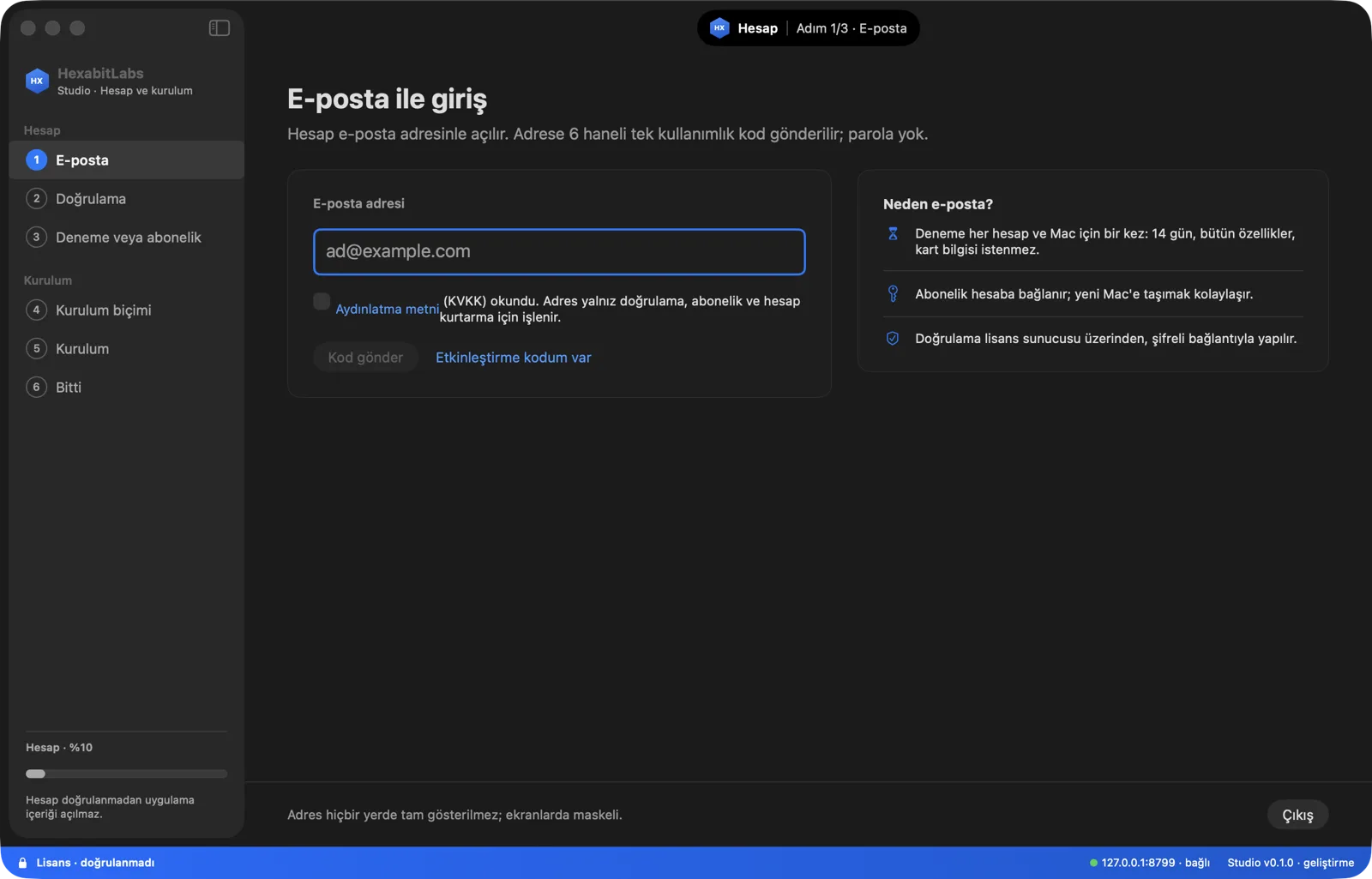
Enter your email address, confirm you have read the privacy notice, and press Send code. A 6-digit one-time code arrives; there is no password. Enter it on the next screen. The address is never shown in full; it is masked. If you already have an activation code, use I have an activation code.
2. Trial or subscription
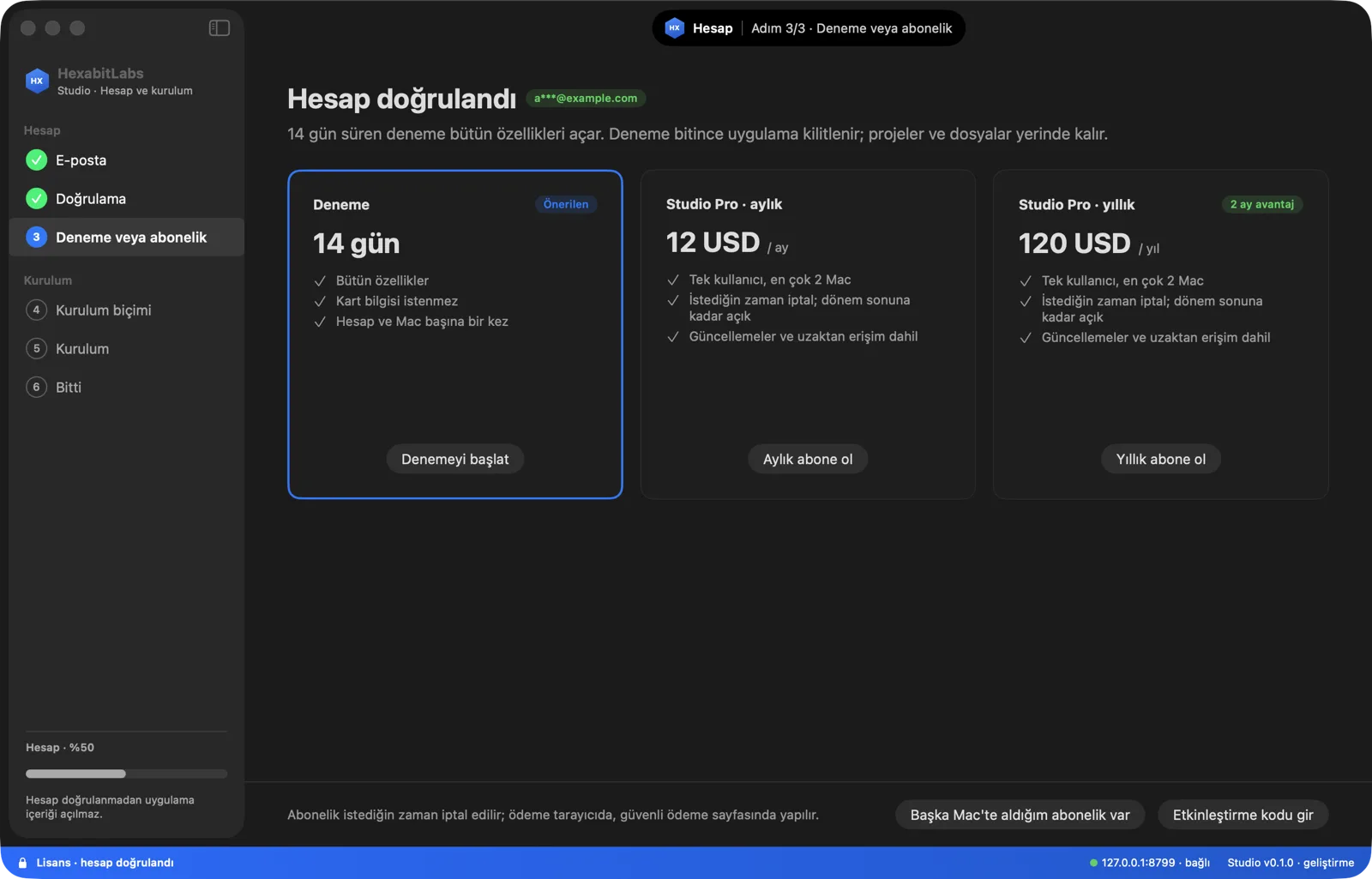
After verification you choose a plan: a 14-day trial (all features, no card, once per account and Mac), Studio Pro monthly (USD 12/month) or yearly (USD 120/year). If you bought a subscription on another Mac, I have a subscription from another Mac brings it to this Mac. Purchasing is not open yet; see Subscription and license.
3. Setup style
Quick setup (recommended) finishes in one screen with the recommended settings; no model is downloaded and it takes a few minutes. Expert setup asks for each setting in 9 steps and lets you skip optional ones. Every setting can be changed later in Settings.
Before you press Install, the app lists the places it will write to and a rollback note for each; the Install button is your confirmation of that list. What Quick setup does:
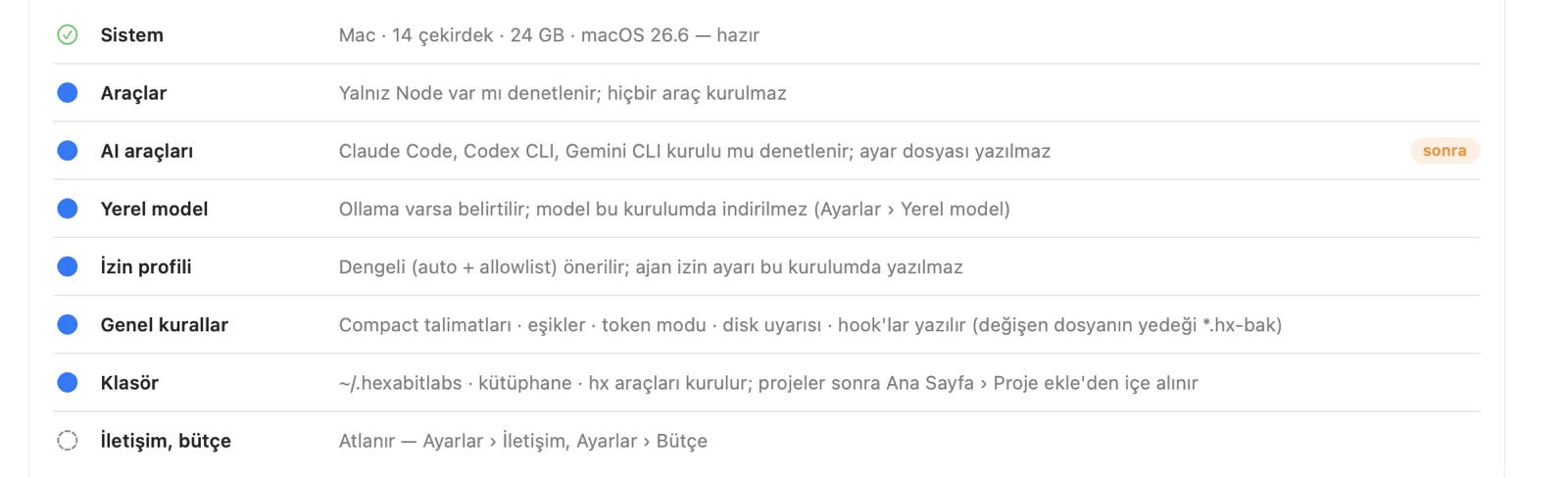
- Checked, not installed/written: Node, Claude Code / Codex CLI / Gemini CLI (whether they are installed; no settings file is written), Ollama (no model is downloaded), the agent permission profile (recommended, not written).
- Written: the
~/.hexabitlabsfolder, the bundled library (rules and capability pack) and thehxtools; general rules (Compact instructions, thresholds, token mode, disk warning, hooks). A backup of every changed file stays next to it as*.hx-bak. - Skipped: communication and budget (later in Settings).
4. Setup complete
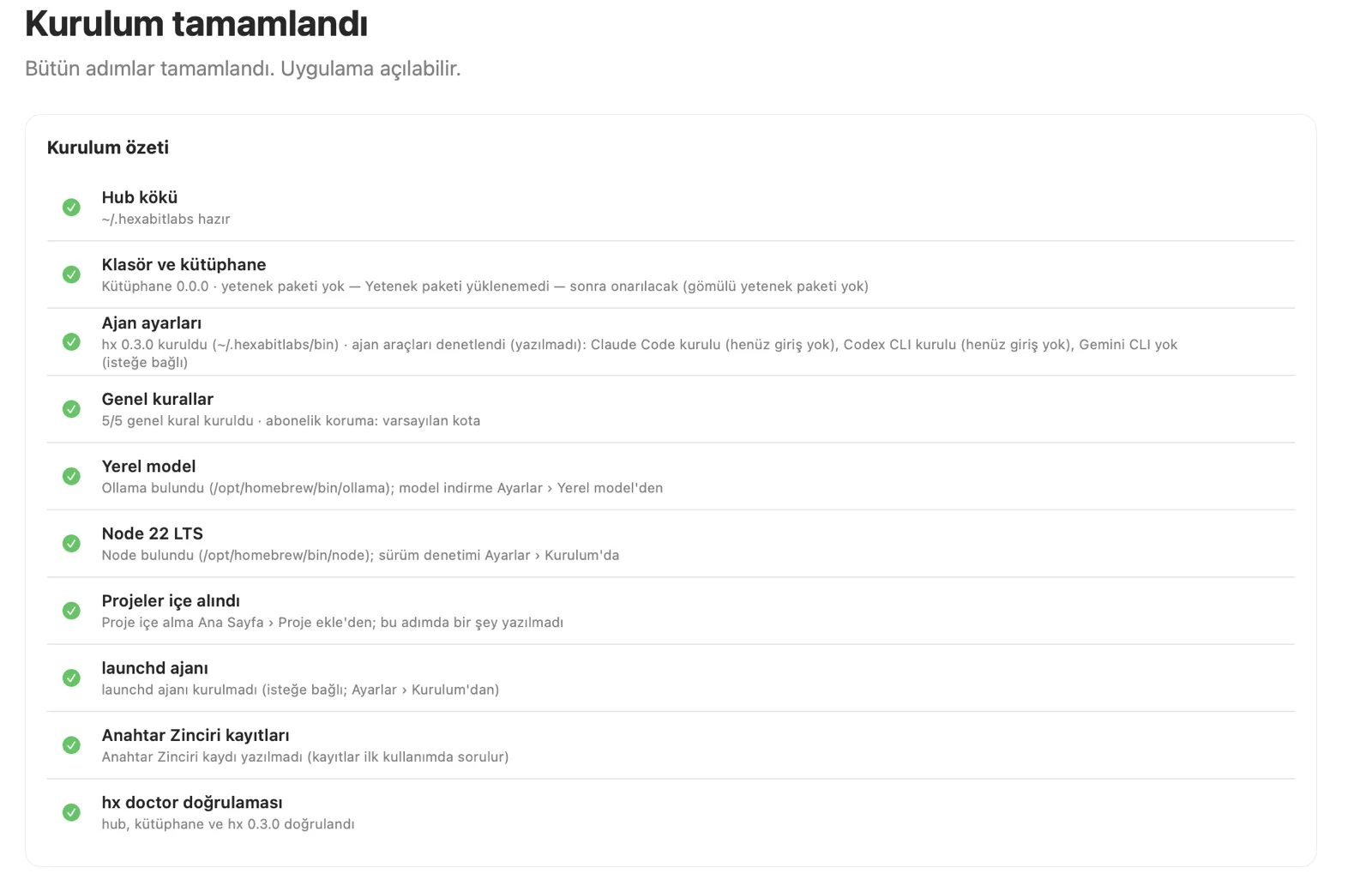
When it finishes you see a step-by-step summary. If a step fails, setup stops; finish the missing step with Settings › Setup › Repair. Open the app takes you to the home screen.
4Your first project
Your projects are file-based: each project folder holds an AGENTS.md and a hexabit/ directory (tasks, decisions, agents, knowledge model). Hexabit Studio reads and visualises these files; it does not move your data to its own server.
- Use Home › Add project to import an existing project folder. The setup wizard does not import projects; this step comes afterwards.
- A Project — <name> group appears in the sidebar: Home, Tasks, Team, Requests, Repo, Knowledge, Quality.
- In Team you see the project’s agents; in Knowledge its knowledge model (screens, entities, functions).
The Home screen (Scope: All Projects) shows a summary of all projects, items waiting for attention and running agents on one screen. The “island” at the top centre shows the running Claude Code sessions and the agent count.
Interface names in this guide follow the Turkish app (İşler = Tasks, Ekip = Team, Bilgi = Knowledge, Kalite = Quality, Etkinlik = Activity); the English interface uses the translated labels.
5Your first agent task
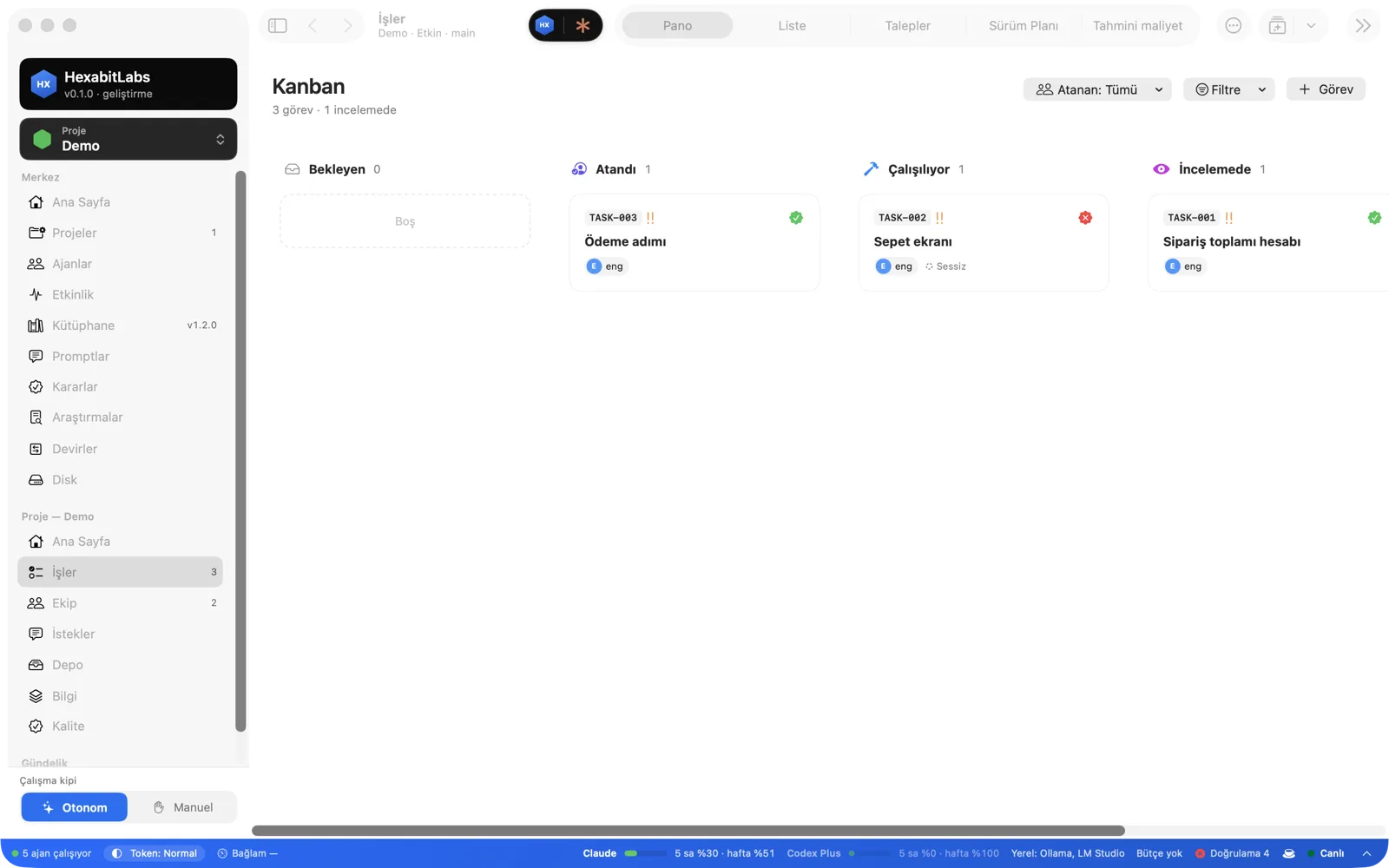
To give work to an agent you first open a task. Tasks flow across the Kanban board on the Tasks screen: Pending → Assigned → In progress → In review and onwards.
- On Tasks, press + Task: write the title and measurable acceptance criteria.
- Assign the task to an agent (the Assignee filter lists tasks by agent).
- In the task detail, press Start session to run the agent. The agent works by reading the task, the rules and the context.
- Follow progress on the Kanban board and the agent’s live state on the Activity screen.
The Autonomous / Manual work mode at the bottom of the sidebar sets how autonomously the agent works.
Agent Office
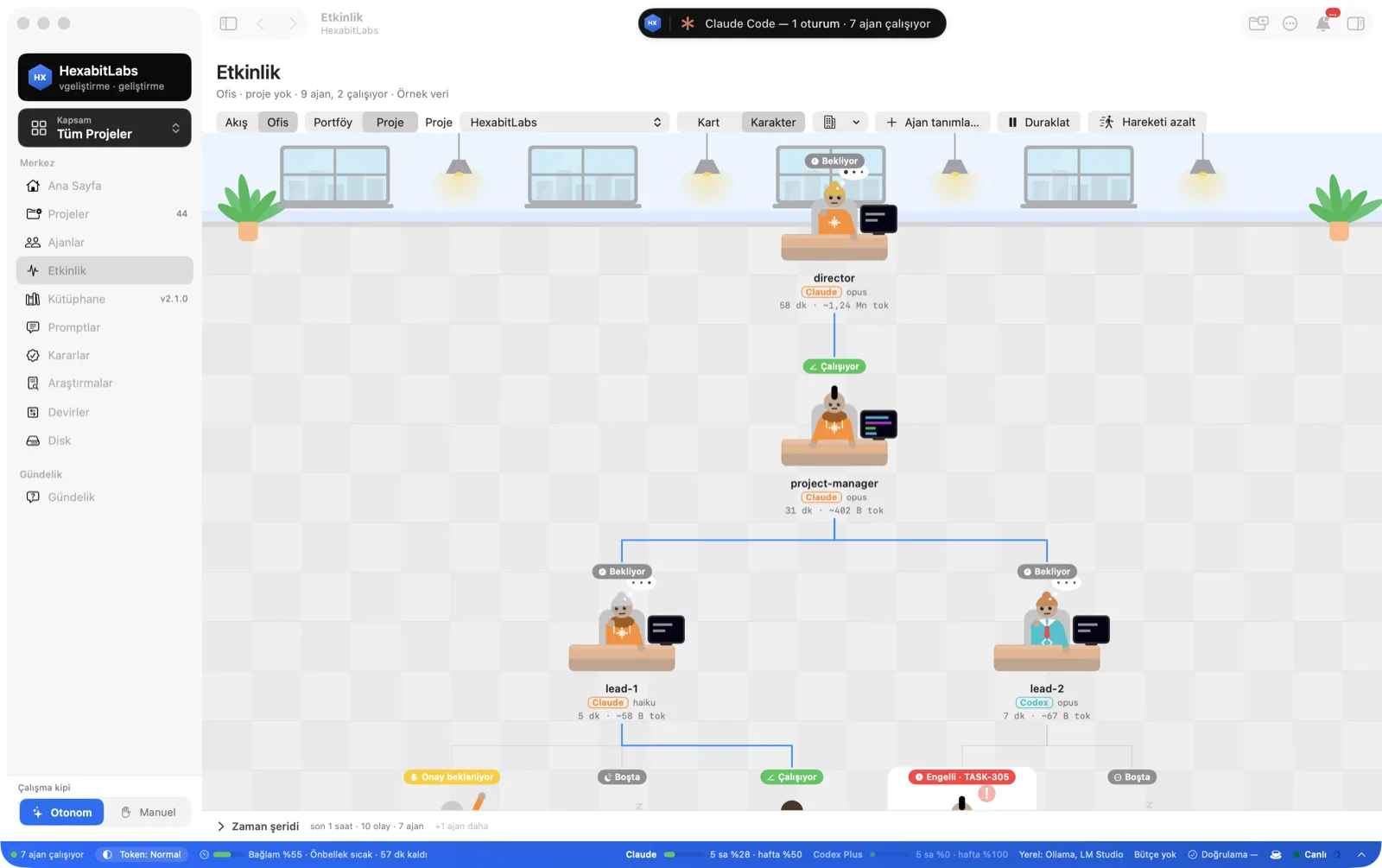
Activity › Office shows the team as an office: who is working, waiting, asking for approval or blocked. The Card | Character switch toggles between two views; in Character view agents work at their desks and a new agent walks in through the door. There are four office themes (Modern, Night, Wood, Minimal), and you can edit each agent’s avatar (hair, skin, accessory, outfit); the avatar is written to the agent’s AGENT.md. Reduce motion turns animations into still poses.
6Approval and review
When an agent finishes, the task moves to In review. Accepting or rejecting is your decision; an agent never approves its own work.
Test badge
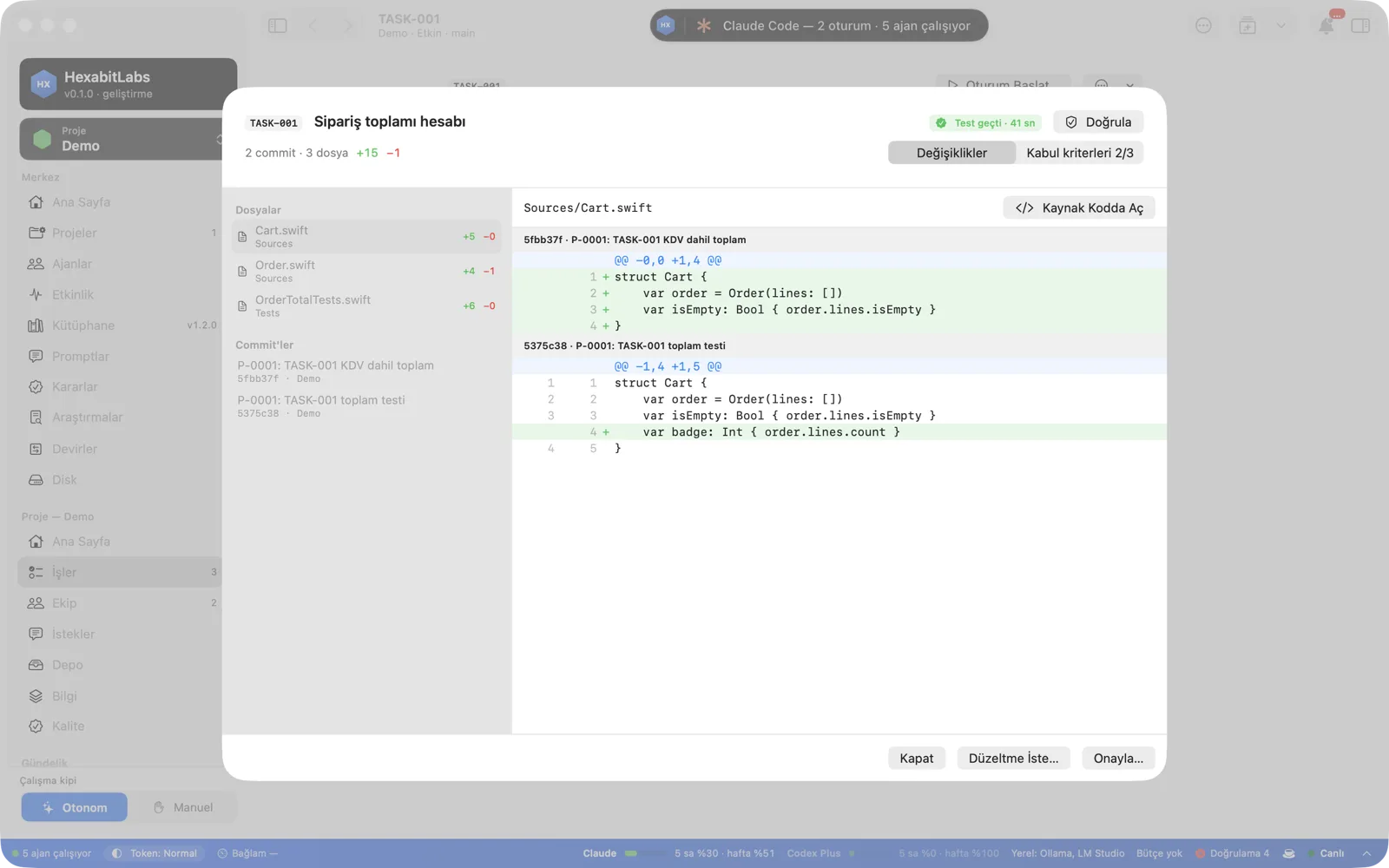
A test badge appears on the task card and in the detail. Verify runs the project’s own verification command (from project.yaml or the “Verification command” in AGENTS.md) and writes the result to the task record: passed/failed, duration, summary. The terminal equivalent is hx task verify TASK-###.
Diff-based review
The review screen shows the task’s commits, the changed files and a line-by-line diff. The Acceptance criteria tab shows the evidence for each criterion. Open in source opens the change in the source browser. To decide, use Approve… or Request changes…; if you request changes, the agent returns to the work with your reason.
Before you change: Impact Analysis
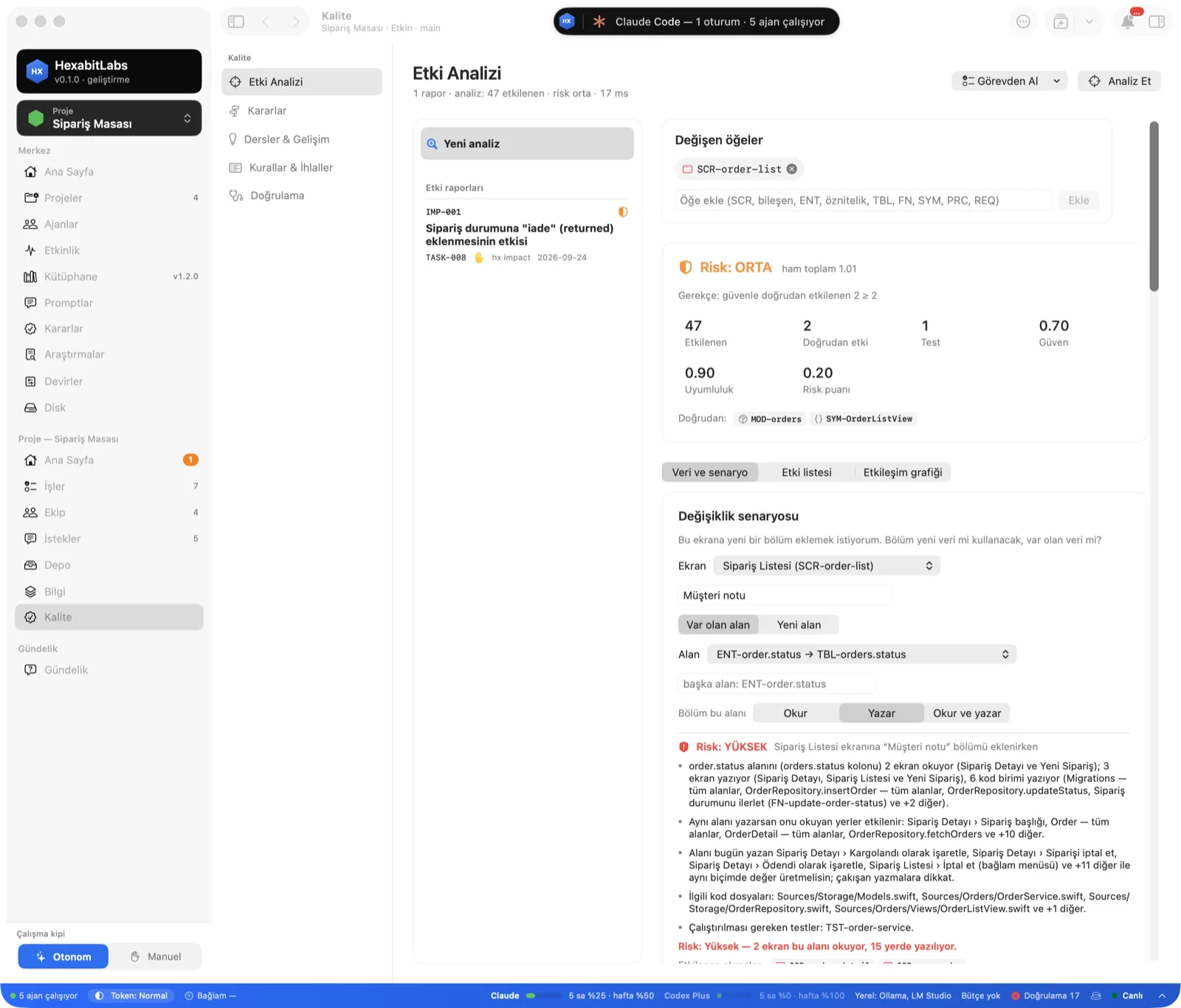
Quality › Impact Analysis shows beforehand what a change will affect: affected screens, code files, tests and risk. With Change scenario you ask “I want to add this data to this screen”; the tool says in plain sentences which screens read or write that field and which tests you should run.
Irreversible actions
For irreversible actions such as deleting, publishing, deploying and security changes, agents ask for your explicit approval first; while waiting, the task shows as Awaiting approval.
7Releases and updates
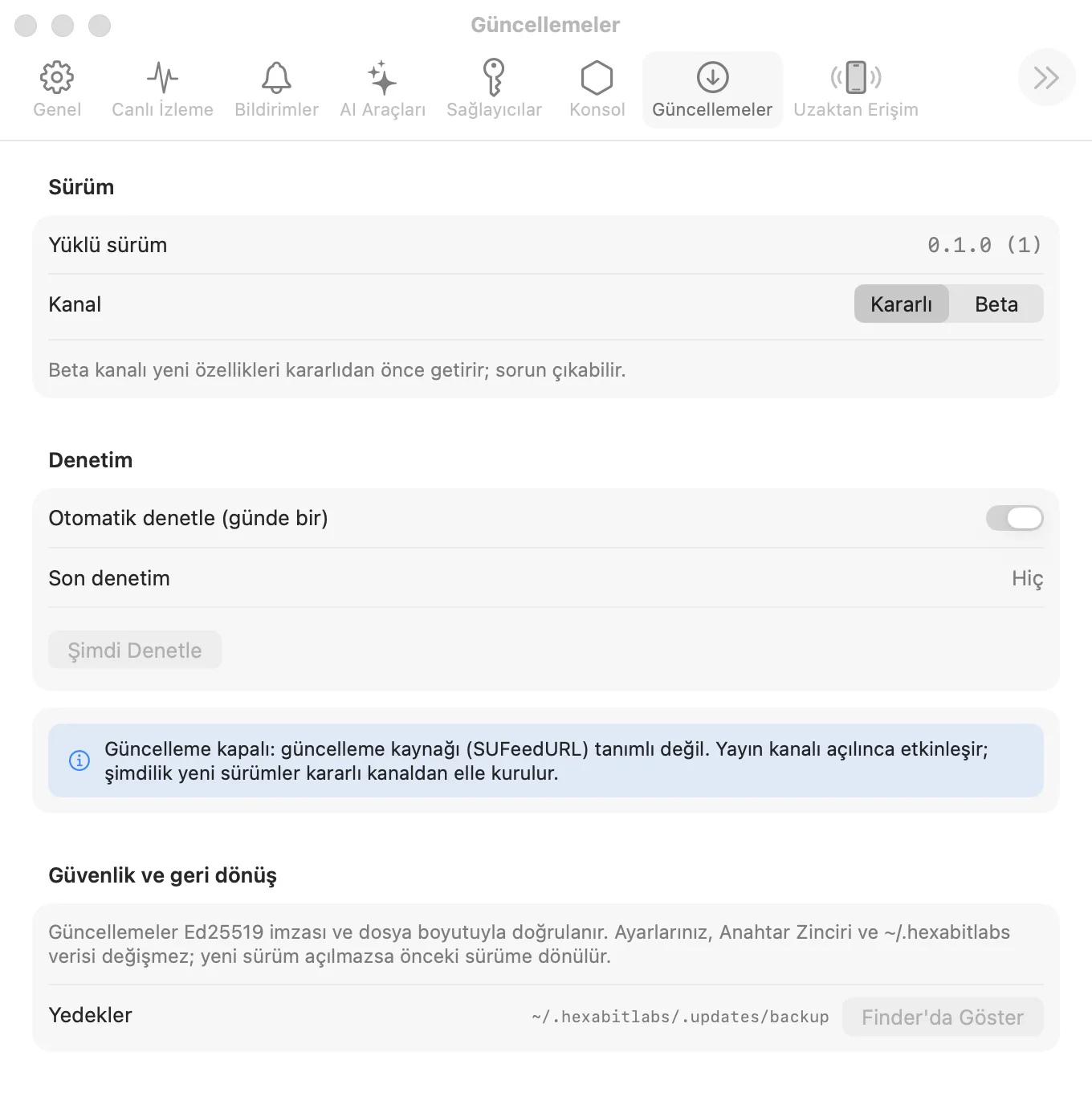
The installed version and update settings are under Settings › Updates.
- Channel: Stable (default) or Beta. Beta brings new features before Stable; problems may occur.
- Checking: automatic daily check and Check now. Updates are verified with an Ed25519 signature and file size.
- Rollback: your settings, Keychain and
~/.hexabitlabsdata do not change with an update; if the new version does not open, the app returns to the previous one. Backups are under~/.hexabitlabs/.updates/backup.
8Subscription and license
Hexabit Studio Pro is a single plan: USD 12/month or USD 120/year; one user, up to 2 Macs; updates included, remote management (browser panel, mobile app) as it becomes ready. The account is created with email and has no password. See Pricing for taxes, discounts and refund terms.
Seeing your status
The badge in the toolbar shows your plan (or the remaining trial time). Click it to see the plan, the end of the paid period and a Manage subscription button. The subscription renews automatically at the end of the period; if you cancel, it stays active until the period ends.
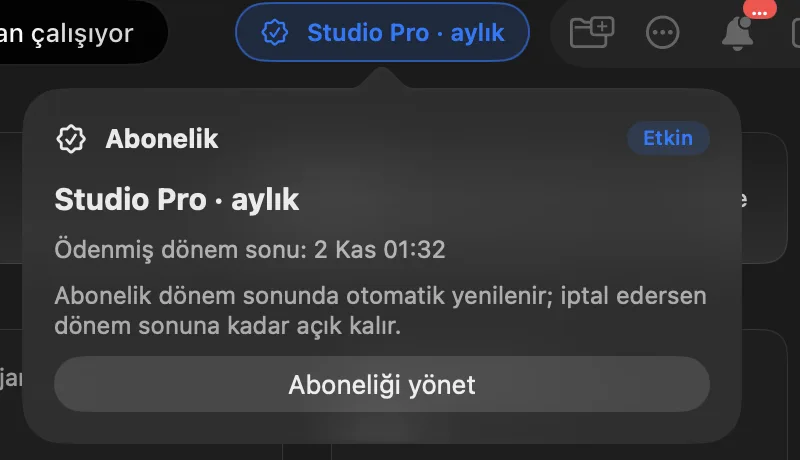
Manage subscription opens the payment provider’s account page; the link activates when the payment account opens Coming soon.
What happens when time runs out?
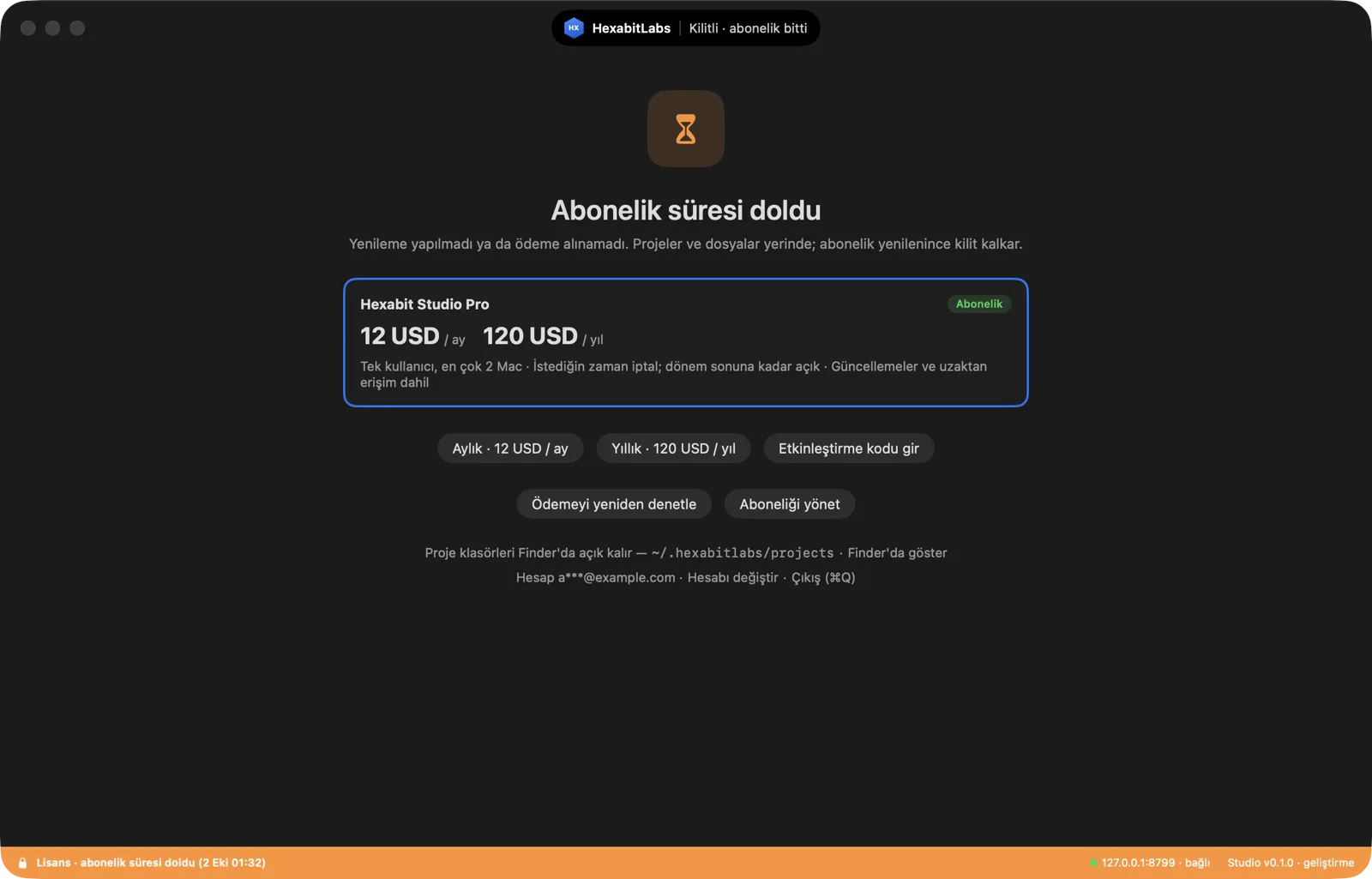
When the trial or subscription ends the app locks; your projects and files stay in place. On the lock screen you can pick a plan, enter an activation code, or press Check payment again to see whether the renewal has arrived; the lock lifts once the subscription renews.
Moving to another Mac
Your subscription belongs to your account. On the new Mac sign in with your email and choose I have a subscription from another Mac; no code is needed. It can be used on up to 2 Macs.
9Troubleshooting
macOS says “developer cannot be verified / cannot be opened”
Expected with the dmg (the app is not signed with an Apple Developer ID). Try to open the app once, then System Settings › Privacy & Security › “Open Anyway” for HexabitLabs. This warning does not appear with the script install.
install.sh says “signature could not be verified” or “SHA mismatch”
This is a safeguard: nothing was installed. Check your connection and try again; if it persists, use the dmg way and write to info@hexabitlabs.com.
“This Mac is not supported”
Required: macOS 26 or later and Apple Silicon. Intel Macs are not supported and not planned. No date has been announced for Windows or Linux.
The email code did not arrive
Check your spam folder first. On the code screen you can resend it or change the email address.
It says the trial was already used for this email
The trial is given once per account and Mac. A Studio Pro subscription is needed to continue (when purchasing opens).
A Mac limit warning appears
One subscription can be used on up to 2 Macs. To release a Mac you no longer use, write to info@hexabitlabs.com.
A step failed in the setup wizard
Setup stops and nothing is left half-done. Finish the missing step with Settings › Setup › Repair. Backups of changed files stay next to them as *.hx-bak.
The hx command is not found in Terminal
Add ~/.hexabitlabs/bin to your PATH or run sh install.sh --add-path, then open a new Terminal window.
Changing the language
Settings › General › Language: System, Türkçe, English, العربية. It applies when the app restarts; Arabic opens with a right-to-left layout.
The app asks for permissions again
Because the app is ad-hoc signed, macOS may reset permissions between versions. Confirm them again.
What happens to my data if I uninstall?
sh install.sh --uninstall removes the app; your hub data under ~/.hexabitlabs and your projects are not touched.
I still cannot solve it
Write to info@hexabitlabs.com with your macOS version, your Hexabit Studio version (Settings › Updates) and the message you see.
Need help?
If you did not find your answer here, write to us and we will reply.