Documentation · Feature guide · Workspace
Home and the attention strip
A summary of every project on one screen: open tasks, running agents, work awaiting approval and the items waiting for your decision.
Matches on other pages
Contents
What it does
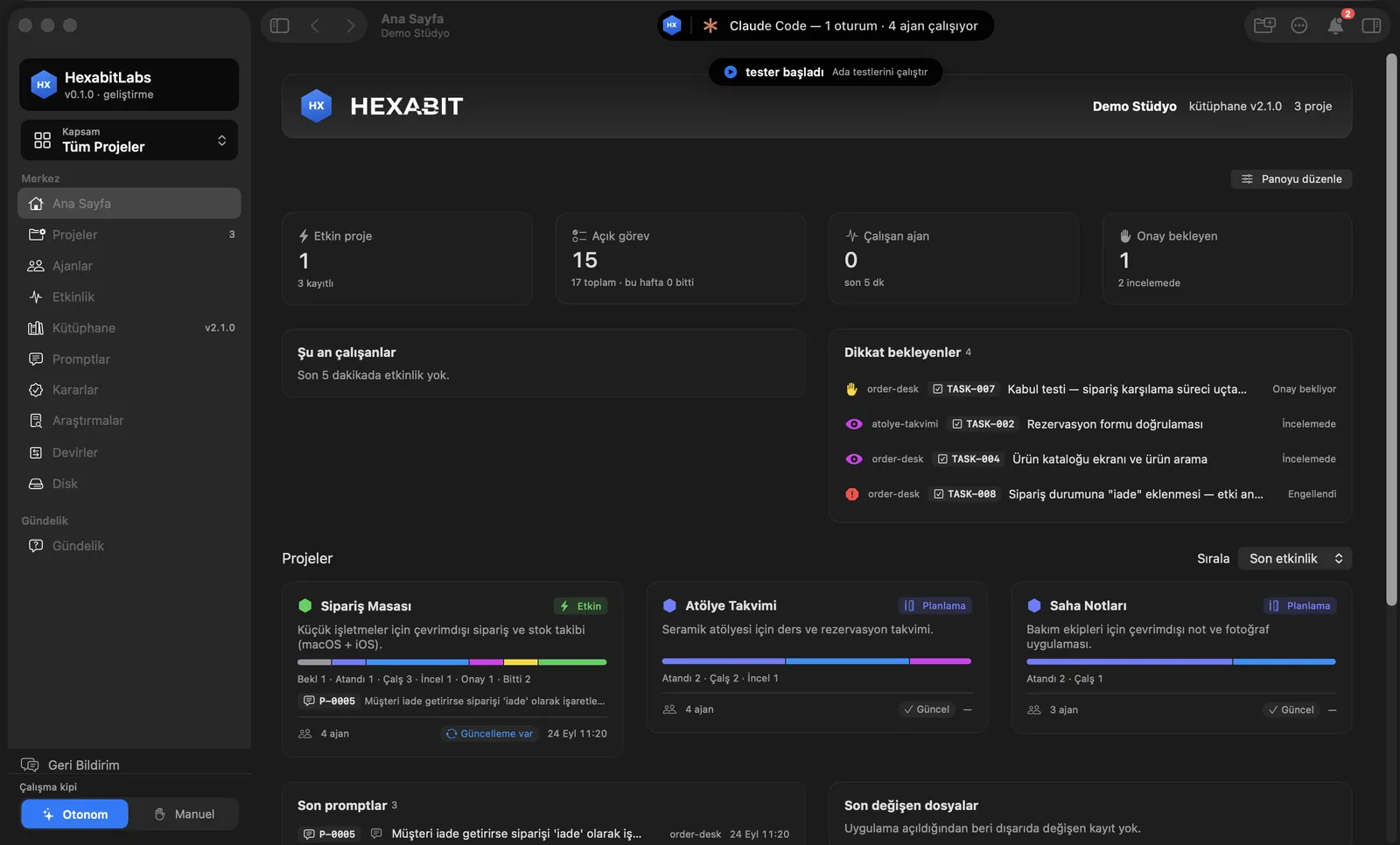
- With Scope: All Projects selected, Home is the portfolio board: active projects, open tasks, running agents and items awaiting approval.
- The Needs attention list (the attention strip) ranks tasks awaiting approval, in review or blocked, with the project name; click a row to open the task.
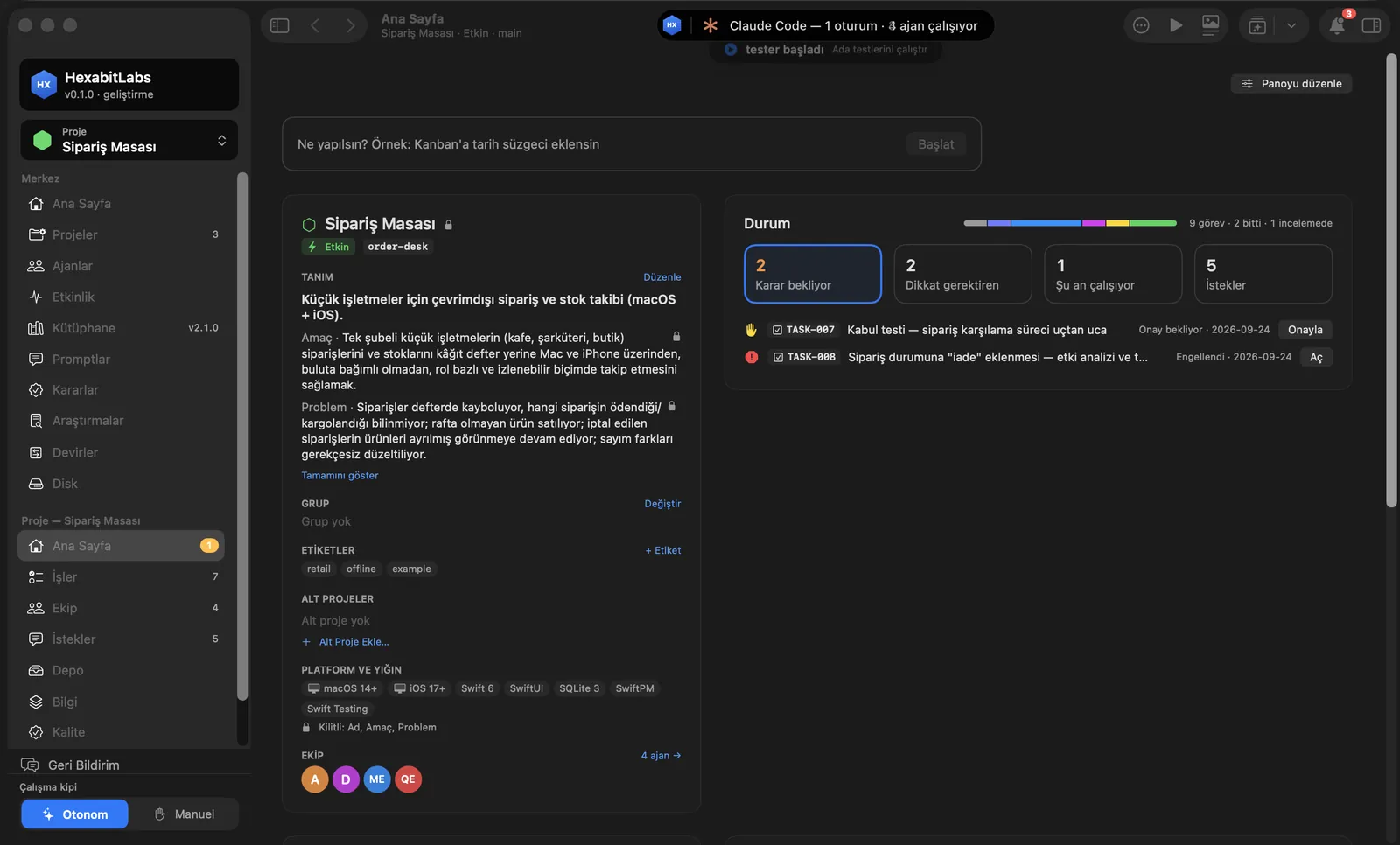
- With a project selected, Home summarizes that project: the Status strip counts decisions pending, items needing attention, work in progress and requests; close an approval with the row’s Approve button.
- Whatever you type into the request field at the top (“What should be done?”) goes to the director agent and is recorded as a numbered prompt.
Step by step
- Choose All Projects from the Scope picker at the top of the sidebar.
- Start at the first row of Needs attention: items awaiting approval are on top.
- Click a project card to drill in; the scope switches to that project.
- On the project Home, click a number in the Status strip to filter; close an approval with Approve.
- To hand over new work, type in the field at the top and press Start.
Related hx commands
# summary of the hub and projects (the same numbers in the terminal)
hx status

# short status; used when an agent session starts
hx status --brief --agent director
Frequently asked questions
Why is Needs attention empty?
When nothing is awaiting approval, in review or blocked, the list stays empty and says so.
Can I change the cards on the board?
Yes. Edit board lets you move, resize, remove and re-add cards; see Themes and boards.
How often do the numbers update?
The app watches project files live; when an agent changes a task file the board refreshes on its own.
Need help?
If you did not find your answer here, write to us and we will reply.