Documentation · Feature guide · Account and upkeep
Vault and backup
Take dated backups of your hub and projects to a folder you choose and verify them with a trial import. An encrypted built-in vault for account details is on the way.
Matches on other pages
Contents
What it does
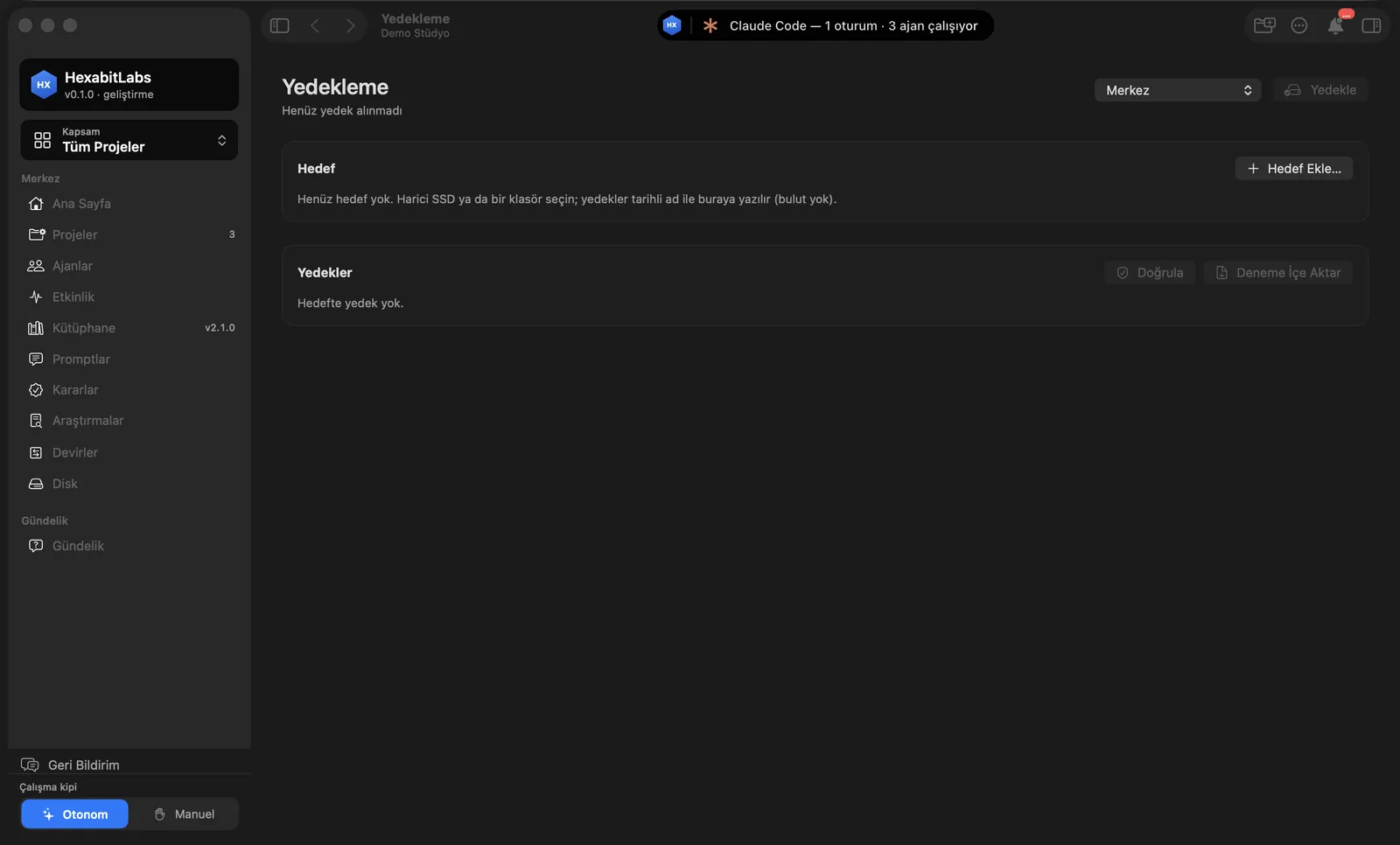
- The Backup screen (Hub): Add Target… for an external disk, a cloud folder or any folder; the backup list, Verify and Trial Import.
- Trial import opens the backup in a temporary folder (the real hub is untouched) and runs
hx validate,git fsckand a vault header check. - Scope: the whole hub or a single project.
- Vault (coming soon): a built-in account vault encrypted with SQLCipher (AES-256) for memberships and service accounts; you keep the recovery key, and an agent gets a secret only after phone approval.
Step by step
- Open Backup in the sidebar (Scope: All Projects).
- Choose the backup folder with Add Target….
- Take the first backup; it appears in the list.
- Prove it opens with Verify and Trial Import.
Related hx commands
# add a backup target
hx backup target add /Volumes/Backup --label "External disk"

# dated backup of the hub
hx backup run --scope hub

# open the backup in a temporary folder and verify
hx backup verify --trial-import

# backups taken
hx backup list
Frequently asked questions
Where does the backup go?
Only to the target folder you choose. The app never sends backups to a server.
How do I know a backup is sound?
Trial Import opens it in a temporary folder and runs the verification commands; the result is recorded.
Are my passwords in the backup?
No. Secrets live in the Keychain and are not written to project files.
Need help?
If you did not find your answer here, write to us and we will reply.