Documentation · Feature guide · Approvals and messaging
Remote access
Your phone and browser connect to your Mac through an end-to-end encrypted relay. When it is off, no network connection is made.
Matches on other pages
Contents
What it does
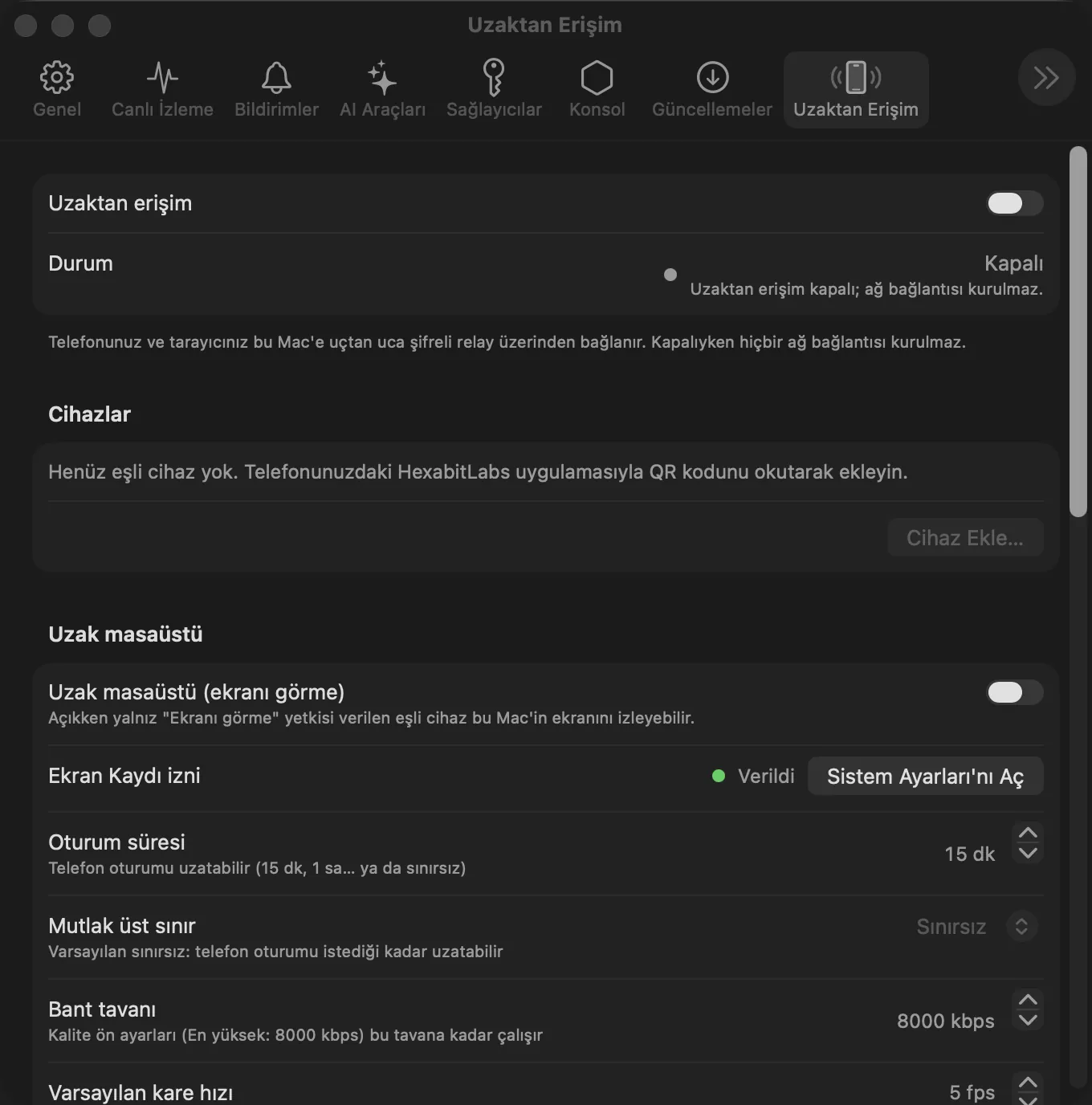
- Settings › Remote Access: the remote access switch and status (when off, “no network connection is made”).
- Devices: pair by scanning a QR code with the phone app; revoke a device.
- Remote desktop: only a paired device granted “View screen” can watch; session length, hard cap, bandwidth ceiling and frame rate are adjustable. While a session runs, a menu bar indicator and a screen-edge frame are shown.
- Approval queue, request time window and a hash-chained audit trail.
Step by step
- Open Settings › Remote Access and turn on Remote access after accepting the responsibility text.
- Show the QR code with Add Device… and scan it with the phone.
- If screen viewing is needed, turn on Remote desktop and grant Screen Recording.
- Revoke devices you no longer use; end a session from the menu bar indicator.
Related hx commands
# paired devices (read only)
hx remote devices list

# latest audit entries
hx remote audit tail -n 20

# hash-chain verification of the audit trail
hx remote audit verify
Frequently asked questions
Is anything connected in the background when it is off?
No. With remote access off, no network connection is made.
Can the remote person see everything?
Only a paired device granted screen viewing sees the screen; the indicator frame and badge are excluded from capture and cannot be hidden locally.
How do I cut it off in an emergency?
From the menu bar indicator: “Disconnect” or “Disconnect and lock remote access”.
Need help?
If you did not find your answer here, write to us and we will reply.